
Cut and Paste Photo Editor
Daily Joy StudioPhotography
4.42.01K Reviews
- Version
- 2.3.1
- Installs
- 10.00M
- Age Rating
- Teen
Screenshots
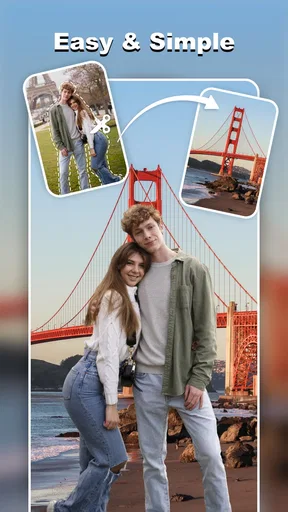
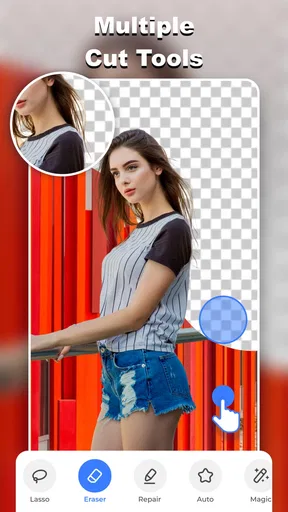
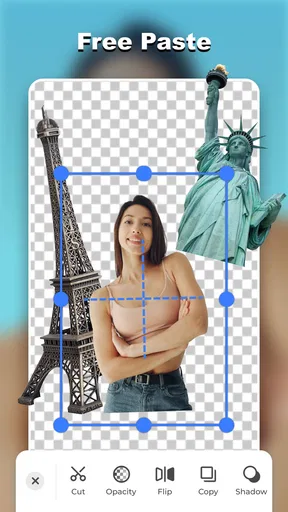
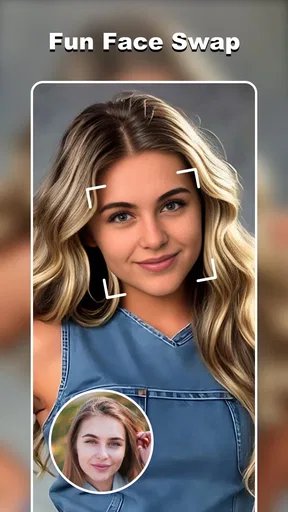

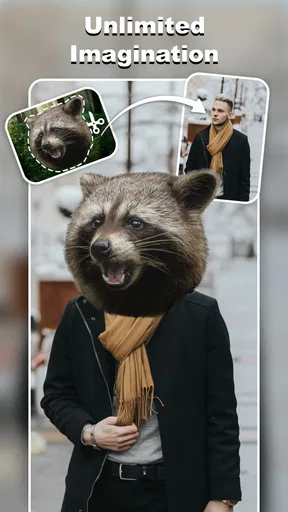
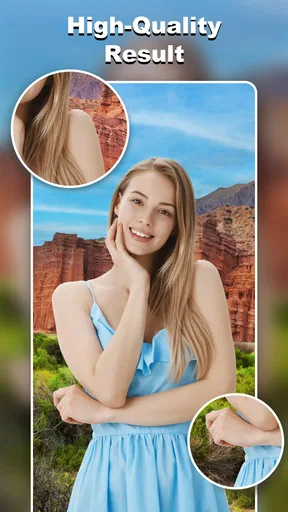
Our Review of Cut and Paste Photo Editor
 Analysis by Appyee
I tend to reach for a cut-and-paste editor when a regular crop or filter cannot make an idea work. Cut and Paste Photo Editor is built around that kind of playful edit: lifting a person or object out of one image and placing it into another. It suits quick collages, funny compositions, and simple social posts more than careful, layered retouching. The key question is whether you want an easy way to assemble an image on your phone, or the more exact control of a full desktop editor.
When the connection shapes the experience
The creative work itself is the main attraction, but connectivity matters at a few points in the process. You may want to bring in a background from your photo library, look through the app’s available choices, or send a finished picture to another service. Those moments can depend on what is available on your device and how your connection is behaving, so I would avoid leaving a collage until the last minute if I need to share it promptly.
I also like to separate the editing task from the sharing task. I can make the cutout and composition first, inspect the result, and then decide where it belongs. That small habit is useful when a connection is slow: it keeps the creative part from turning into repeated attempts to post before the image is ready.
Useful on a phone, with a little planning
This is a natural fit for casual mobile editing because the central idea is easy to understand: choose an image, isolate something in it, and build a new scene. It can work for a birthday card, a playful picture for a group chat, or a quick mock-up of an object against a different setting. I would not choose it for a detailed product catalogue or a polished campaign image, where exact edges and consistent color matter more.
A practical example: I might want to put a friend into a holiday photo after they missed the group shot. I would first pick source images with similar light and camera angles, then check the outline before spending time on shadows or text. A close match between the two photos usually matters more than an elaborate background; otherwise, even a neat cutout can look pasted on.
Recovering from a rough cut
Automatic edge detection can save time, but it is not a guarantee of a clean selection. Hair, thin straps, leaves, and objects that blend into their backgrounds are the kinds of details I would inspect closely. If the outline looks ragged, I would try a simpler source image rather than endlessly polishing a difficult one. Choosing a photo with clear contrast is often the more efficient fix.
It also helps to make edits in a sensible order. I would select the subject, place it in the new scene, and only then adjust the lighting and shadow so the changes respond to the final composition. Adding captions or filters before the cutout is settled can mean redoing work if the subject needs to be moved or resized.
Keeping sharing and data use in perspective
For people who keep an eye on mobile data, the cautious approach is straightforward: prepare source photos and any personal background images before starting, and share the finished result when the connection suits you. I would avoid assuming that every part of the experience behaves the same way on every connection. If speed or data use matters, check what the app is doing on your own device rather than repeatedly refreshing or retrying a step.
Privacy is worth considering too. A collage may include other people, private photos, or text that was meant only for friends. I would review the final image and the destination before sharing, especially when making a joke edit from someone else’s picture. The convenience of sending a finished image directly should not replace that quick check.
Getting Started and Making Better Edits
First things first, downloading and setting up the app is a breeze. A quick trip to the app store, a tap on the download button, and you're good to go. Once installed, the interface is super user-friendly. The main screen gives you a clear view of all your editing tools, making it easy to dive right into your creative projects.
It is a free photography app from Daily Joy Studio, with a Teen content rating. Its average rating is 4.5 from around 128,000 ratings, and it has been installed over 10 million times. Those figures suggest that this style of editing has broad appeal, though what matters most is whether the workflow suits the kinds of pictures you actually make.
Features that Wow
One of the standout features is the ability to cut out objects from a photo with precision. Whether you want to snip yourself out of a group picture or isolate an object from a cluttered background, this app’s got your back. The "auto" feature intelligently detects edges, saving you from meticulous manual selection.
Once you’ve got your cutout, it’s time to get pasting. The app offers a variety of backgrounds to choose from, or you can import your own. I particularly enjoyed blending different elements to create something entirely new—it's like digital collage-making!
For a more convincing composite, I would pay attention to scale before fine-tuning anything else. A person who is too large for the scene will look misplaced even if the edge is smooth. I would also compare the direction of light in both images: placing a brightly lit subject against a dim background can be harder to disguise than a slightly imperfect outline.
Creative Freedom
Beyond simple cut and paste, the app offers tools for adjusting lighting, shadows, and even adding filters. You can tweak the brightness, contrast, and saturation to make your cutouts look like they were always meant to be part of the new scene. Adding shadows under objects gives them a realistic touch that adds depth to your creations.
And let’s not forget the nifty text feature. You can add captions or quirky quotes to your photos, with a range of fonts and colors to play with. It’s perfect for creating memes or personalized cards.
These tools are most useful when applied with restraint. A small brightness adjustment and a believable shadow can help a cutout sit in its new setting; piling on filters, strong colors, and decorative text can make the image feel busy. I would save a clean version before adding a caption if I expect to reuse the collage in a different way.
Sharing Your Masterpiece
Once your creation is ready, sharing it with the world is just a tap away. The app integrates seamlessly with social media platforms, allowing you to upload directly to Instagram, Facebook, or wherever your audience awaits. Plus, the high-resolution export ensures your images look crisp and professional.
In practice, I would still inspect the saved image at the size where it will be viewed. A small edge flaw that disappears on a phone screen may stand out in a larger post, while tiny text can become hard to read after sharing. A quick final check helps avoid discovering those problems after the image has left the editor.
Room for Improvement?
As much as I enjoyed using Cut and Paste Photo Editor, there's always room for improvement. Occasionally, the auto-selection tool requires a bit of manual touch-up, especially with complex edges like hair or intricate patterns. However, with a little patience, you can achieve impressive results.
Another thing to note is that while the basic features are free, some advanced tools are locked behind a premium subscription. It’s a common model for apps these days, but it’s something to keep in mind if you're looking for full access.
The app is free to start, with in-app purchases priced from $8.99 to $19.99 per item. I would try the everyday workflow before paying: make a cutout, test a background, and see whether the available free tools are enough for the edits I want. The current version is 2.1.1, and it requires Android 9 or later, so device compatibility is another sensible check before planning a project around it.
Who will enjoy it, and who may prefer another editor
I would recommend this app to someone who wants to make an amusing composite without learning a complicated editing program. It is especially appealing for quick personal projects where the idea matters more than pixel-perfect realism. A parent making a playful card, a student creating a visual joke, or a casual creator assembling a simple collage can get useful results by choosing clear source images and keeping the composition uncluttered.
If I needed precise masking, multiple carefully controlled layers, or reliable professional finishing, I would choose a more advanced photo editor instead. A basic collage maker may also be a better fit if all I want is to arrange complete photos in a grid; this app’s distinctive appeal is the cutout-and-place approach, not simply combining untouched pictures.
Final Thoughts
All in all, Cut and Paste Photo Editor is a fantastic tool for anyone looking to inject a bit of creativity into their photo editing. Whether you're a casual user wanting to create fun images or a more serious creator looking for an on-the-go editing solution, this app is definitely worth checking out.
So why not give it a try? You might just find yourself addicted to the endless possibilities it offers. Happy editing!
My practical verdict is that it works best when I treat it as a fast collage tool, choose compatible photos, and leave time to review the edge and lighting before sharing. Its network-related steps are worth planning around, but the bigger decision is whether its simple compositing style matches your needs. For spontaneous, playful edits, that simplicity is a strength; for meticulous retouching, I would reach for a more specialized editor.
Verdict
Strengths of Cut and Paste Photo Editor
- Easy-to-use interface for quick edits.
- Variety of background options available.
- Supports high-resolution exports.
- Multiple languages for global users.
- Free version offers many features.
Limitations of Cut and Paste Photo Editor
- Contains frequent in-app ads.
- Some features require premium upgrade.
- Occasional crashes on older devices.
- Limited editing tools compared to pro apps.
- No direct social media sharing option.
Other Releases by Daily Joy Studio
View All
Scroll & Collage Maker: InsMix
Photography4.6
Similar Picks in This Category
View All
Google Photos
Google LLC4.4

Gallery
Google LLC4.2

Picsart AI Photo Editor, Video
PicsArt, Inc.3.9

B612 AI Photo&Video Editor
SNOW Corporation4.1

BeautyPlus-Selfie Photo Editor
PIXOCIAL TECHNOLOGY (SINGAPORE) PTE. LTD.4.5

Remini - AI Photo Enhancer
Bending Spoons4.1
Frequently Asked Questions
What features does the Cut and Paste Photo Editor offer?
The Cut and Paste Photo Editor provides a variety of features including background removal, object cloning, and seamless photo blending. Users can also access an extensive library of backgrounds, stickers, and filters. The app is designed to be user-friendly, making it accessible for both beginners and advanced users looking to create stunning photo edits.
Is the Cut and Paste Photo Editor easy to use for beginners?
Yes, the Cut and Paste Photo Editor is designed with an intuitive interface that makes it easy for beginners to navigate. It offers step-by-step guides and tutorials to help users understand how to use each feature effectively. Even with no prior experience, users can quickly learn how to create professional-grade edits.
Are there any in-app purchases or subscriptions required?
While the Cut and Paste Photo Editor is free to download, it does offer in-app purchases for additional features, such as premium backgrounds and ad-free usage. Users can choose to purchase a subscription for access to all advanced features and updates. However, the basic tools remain free to use.
How does the app handle privacy and data security?
The Cut and Paste Photo Editor prioritizes user privacy and data security. It does not store or share personal photos without user consent. The app also complies with industry-standard security protocols to ensure that user data is protected. Users can review the privacy policy within the app for more detailed information.
Can I share my edited photos directly from the app?
Yes, the Cut and Paste Photo Editor allows users to share their edited photos directly to social media platforms such as Instagram, Facebook, and Twitter. The app also supports sharing via email and messaging apps, making it convenient for users to showcase their creativity with friends and family.
